
Wie können wir helfen?
Create SCCM Agent Update Package
Software Distribution: Create and Deploy a Package and Program!
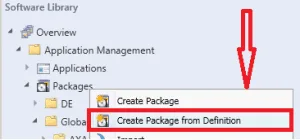
1.) You must have already noticed that there is a default package called “Configuration Manager Client Package” with no Programs init. Note that we can’t use that package for Software Distribution Client Upgrade. That package is a read-only package that can only be used for OSD. When you right-click on “Configuration Manager Client Package”, you won’t be able to see “Deploy” and even “create a program” options
2.) You must create a new package from a definition file (the definition file is already on your server).
3.) Select the publisher name as “Microsoft”. You can see two definition files: Device Management Client Transfer and Configuration Manager Client Upgrade. Select the second one (Configuration Manager Client Upgrade).
4.) Select the “Always Obtain Source files from a source folder” option.
5.) Type in the UNC patch “\\SERVER-FQDN\SMS_XXX\Client”. Replace Server-FQDN with your site server name and XXX with your Site Code.
6.) Click on NEXT and Finish.
7.) Once the package is created, distribute the content to all the required DPs.
8.) Create a Deployment (advertisement) for that package and target the required clients. Another tip is to change the site code in the command line if you want. The default command line in the program is “CCMSETUP.EXE /noservice SMSSITECODE=AUTO”. You can replace auto with your side code.