
Wie können wir helfen?
Initiate SCCM client agent actions using command line
We can initiate SCCM Client agent actions using command line by going to Configuration Manager Properties & clicking on Action Tab. However, we can do the same using command line and PowerShell commands. These commands can be executed on Local as well remote systems.
Every action stated under actions tab has a specific Trigger Schedule ID. The list of these ID’s are as follows:
Client Agent Trigger Schedule ID
| Client Agent Trigger Schedule ID | Client Action Name |
| {00000000-0000-0000-0000-000000000021} | Machine policy retrieval & Evaluation Cycle |
| {00000000-0000-0000-0000-000000000022} | Machine policy evaluation cycle |
| {00000000-0000-0000-0000-000000000003} | Discovery Data Collection Cycle |
| {00000000-0000-0000-0000-000000000002} | Software inventory cycle |
| {00000000-0000-0000-0000-000000000001} | Hardware inventory cycle |
| {00000000-0000-0000-0000-000000000113} | Software updates scan cycle |
| {00000000-0000-0000-0000-000000000114} | Software updates deployment evaluation cycle |
| {00000000-0000-0000-0000-000000000031} | Software metering usage report cycle |
| {00000000-0000-0000-0000-000000000121} | Application deployment evaluation cycle |
| {00000000-0000-0000-0000-000000000026} | User policy retrieval |
| {00000000-0000-0000-0000-000000000027} | User policy evaluation cycle |
| {00000000-0000-0000-0000-000000000032} | Windows installer source list update cycle |
| {00000000-0000-0000-0000-000000000010} | File collection |
Initiate Command line on local system
First you need to open command prompt with elevated privileges. Run the following commands:
Trigger Schedule ID – Command Line
| Client Action Name (For Local System) | Client Agent Trigger Schedule ID | SCCM / MECM log files to verify |
| Machine policy retrieval & Evaluation Cycle | WMIC /namespace:\\root\ccm path sms_client CALL TriggerSchedule „{00000000-0000-0000-0000-000000000021}“ /NOINTERACTIVE | PolicyAgent.log |
| Machine policy evaluation cycle | WMIC /namespace:\\root\ccm path sms_client CALL TriggerSchedule „{00000000-0000-0000-0000-000000000022}“ /NOINTERACTIVE | |
| Discovery Data Collection Cycle | WMIC /namespace:\\root\ccm path sms_client CALL TriggerSchedule „{00000000-0000-0000-0000-000000000003}“ /NOINTERACTIVE | InventoryAgent.log |
| Software inventory cycle | WMIC /namespace:\\root\ccm path sms_client CALL TriggerSchedule „{00000000-0000-0000-0000-000000000002}“ /NOINTERACTIVE | Inventoryagent.log |
| Hardware inventory cycle | WMIC /namespace:\\root\ccm path sms_client CALL TriggerSchedule „{00000000-0000-0000-0000-000000000001}“ /NOINTERACTIVE | Inventoryagent.log |
| Software updates scan cycle | WMIC /namespace:\\root\ccm path sms_client CALL TriggerSchedule „{00000000-0000-0000-0000-000000000113}“ /NOINTERACTIVE | ScanAgent.log |
| Software updates deployment evaluation cycle | WMIC /namespace:\\root\ccm path sms_client CALL TriggerSchedule „{00000000-0000-0000-0000-000000000114}“ /NOINTERACTIVE | ScanAgent.log,UpdateDeployment.log |
| Software metering usage report cycle | WMIC /namespace:\\root\ccm path sms_client CALL TriggerSchedule „{00000000-0000-0000-0000-000000000031}“ /NOINTERACTIVE | Mtrmgr.log |
| Application deployment evaluation cycle | WMIC /namespace:\\root\ccm path sms_client CALL TriggerSchedule „{00000000-0000-0000-0000-000000000121}“ /NOINTERACTIVE | Appdiscovery.log, AppIntentEval |
| User policy retrieval | WMIC /namespace:\\root\ccm path sms_client CALL TriggerSchedule „{00000000-0000-0000-0000-000000000026}“ /NOINTERACTIVE | |
| User policy evaluation cycle | WMIC /namespace:\\root\ccm path sms_client CALL TriggerSchedule „{00000000-0000-0000-0000-000000000027}“ /NOINTERACTIVE | |
| Windows installer source list update cycle | WMIC /namespace:\\root\ccm path sms_client CALL TriggerSchedule „{00000000-0000-0000-0000-000000000032}“ /NOINTERACTIVE | |
| File collection | WMIC /namespace:\\root\ccm path sms_client CALL TriggerSchedule „{00000000-0000-0000-0000-000000000010}“ /NOINTERACTIVE |
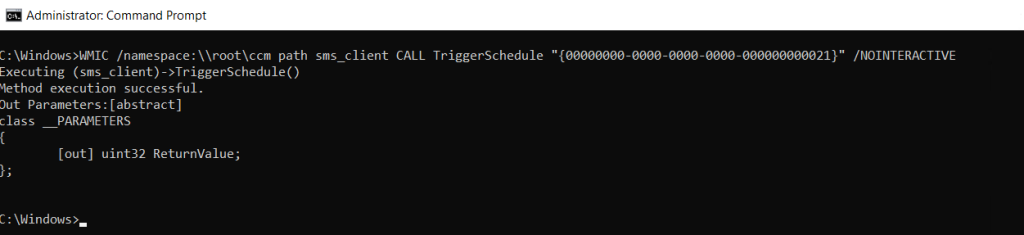
Log files can be verified to see the action initiated. You can find the logs under c:\windows\ccm\logs directory. Following is the screenshot for the reference:
Initiate Command line on Remote system
There will be a slight variation with the command by using the /node parameter with WMIC. Following is one example:
WMIC /node:"HOSTNAME" /namespace:\\root\ccm path sms_client CALL TriggerSchedule "{00000000-0000-0000-0000-000000000021}" /NOINTERACTIVE
Where hostname is a remote system name where you wanted to execute the command.
Initiate PowerShell Command on Local system
Invoke-WmiMethod -Namespace root\ccm -Class sms_client -Name TriggerSchedule "{00000000-0000-0000-0000-000000000021}"

Initiate PowerShell Command on Remote system
With Invoke-WmiMethod we have to use additional parameter ie. -ComputerName
Invoke-WmiMethod -ComputerName “hostname” -Namespace root\ccm -Class sms_client -Name TriggerSchedule "{00000000-0000-0000-0000-000000000021}"
PowerShell Script to initiate Client Actions on multiple Systems
We can use PowerShell Script to automate this process for multiple systems.
Conclusion
Initiating the SCCM client actions can be done via command line or PowerShell command. These client actions can be initiated for local and remote device as well. The process is simple and can be executed very easily.